We’ve just released Dropzone 5.1.6, which introduces Folder Monitoring.
Dropzone can now watch folders on your Mac and automatically add new files to Drop Bar or run an action on them. It’s a great way to automate repetitive file tasks, whether you’re converting files, uploading them, sharing them via AirDrop or using another Dropzone action.
We’ve put together a short demo of the feature, which you can watch above.
Setting Up Folder Monitoring
To get started, open Dropzone’s Settings and select Folder Monitor. Click ‘Add Folder’ and choose a folder you’d like Dropzone to watch. You can use an existing folder or create a new one for a particular task.
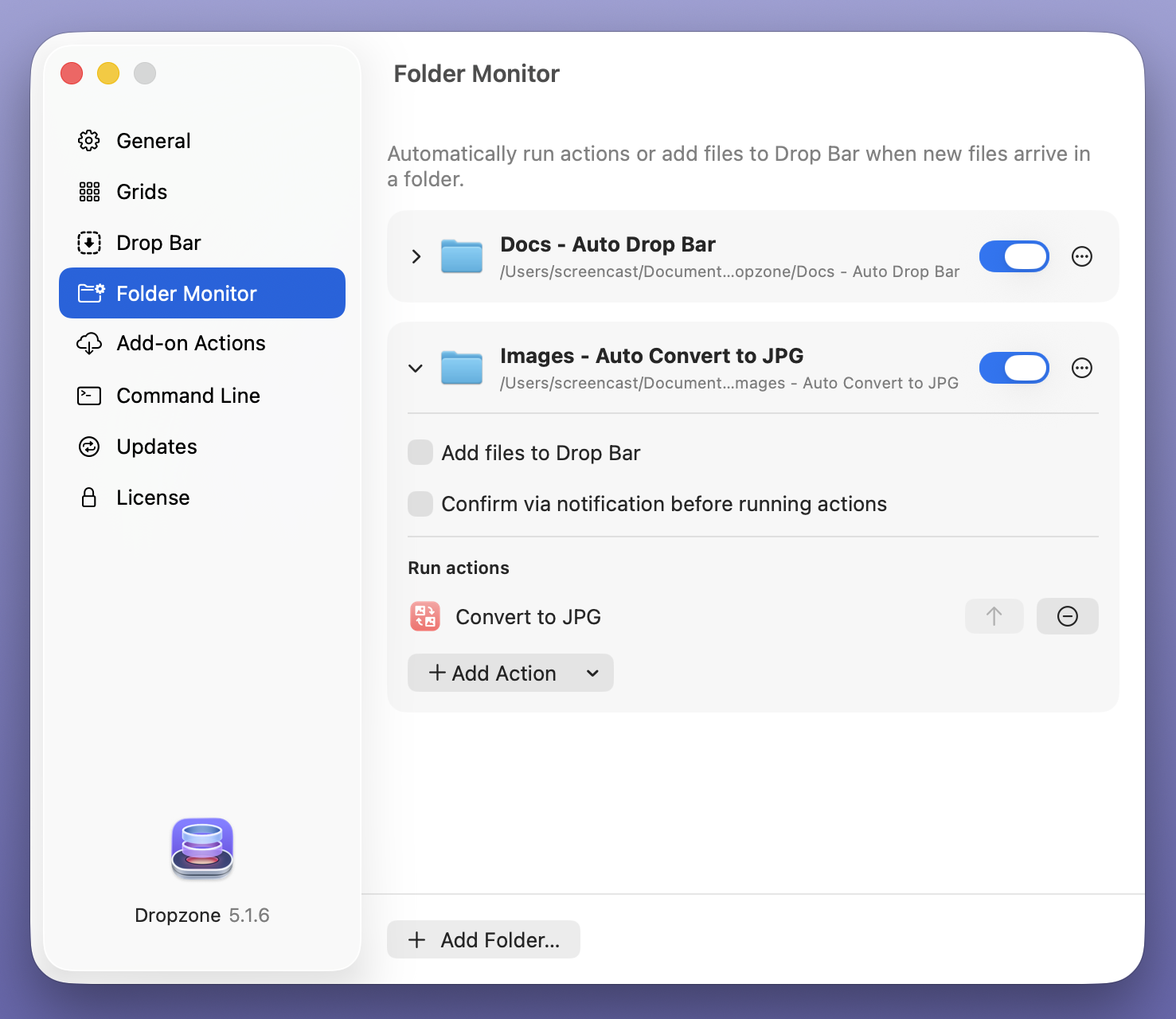
Each folder has its own settings. You can enable ‘Add files to Drop Bar’, choose an action to run with new files, or use both together. You can set up as many monitored folders as you need for different jobs.
Automatically Add Files to Drop Bar
In the first example from the video, we set up a folder for incoming documents and leave ‘Add files to Drop Bar’ enabled. When documents are added to the folder, they appear in Drop Bar, ready to drag into an email, onto a Dropzone action or anywhere else you need them.
Run Actions Automatically
For the second example, we set up a separate folder for image conversion. This time we turn off ‘Add files to Drop Bar’ and choose an action that converts images to JPEGs. Dropping PNG images into the folder then runs the action automatically.
These are just two examples. You can choose your own folders and actions to suit the way you work, whether that’s gathering files in Drop Bar, resizing images or preparing files to share.
Get the Latest Version
Folder Monitoring is available in Dropzone 5.1.6 and later. To update, open Dropzone’s Settings and head to the Updates tab, or download the latest version from our home page.
We hope you find Folder Monitoring useful. If you have any feedback or questions, you can email us at support@aptonic.com.