How to Register Dropzone 5 Pro
Follow these steps to activate your Dropzone 5 Pro Lifetime license
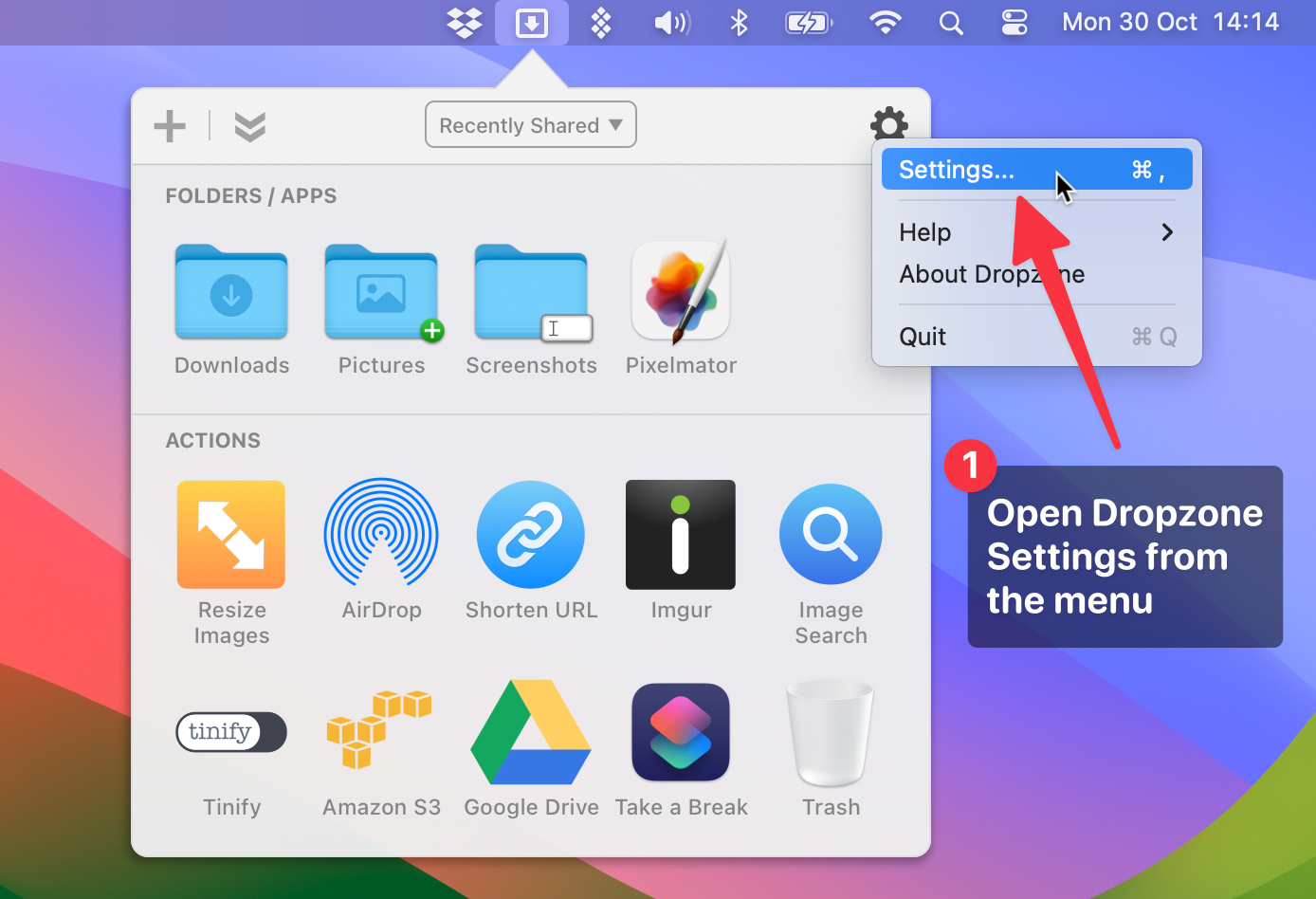
Open Dropzone Settings
Click the Dropzone icon in the menu bar, then click the Settings gear icon in the top right of the grid.
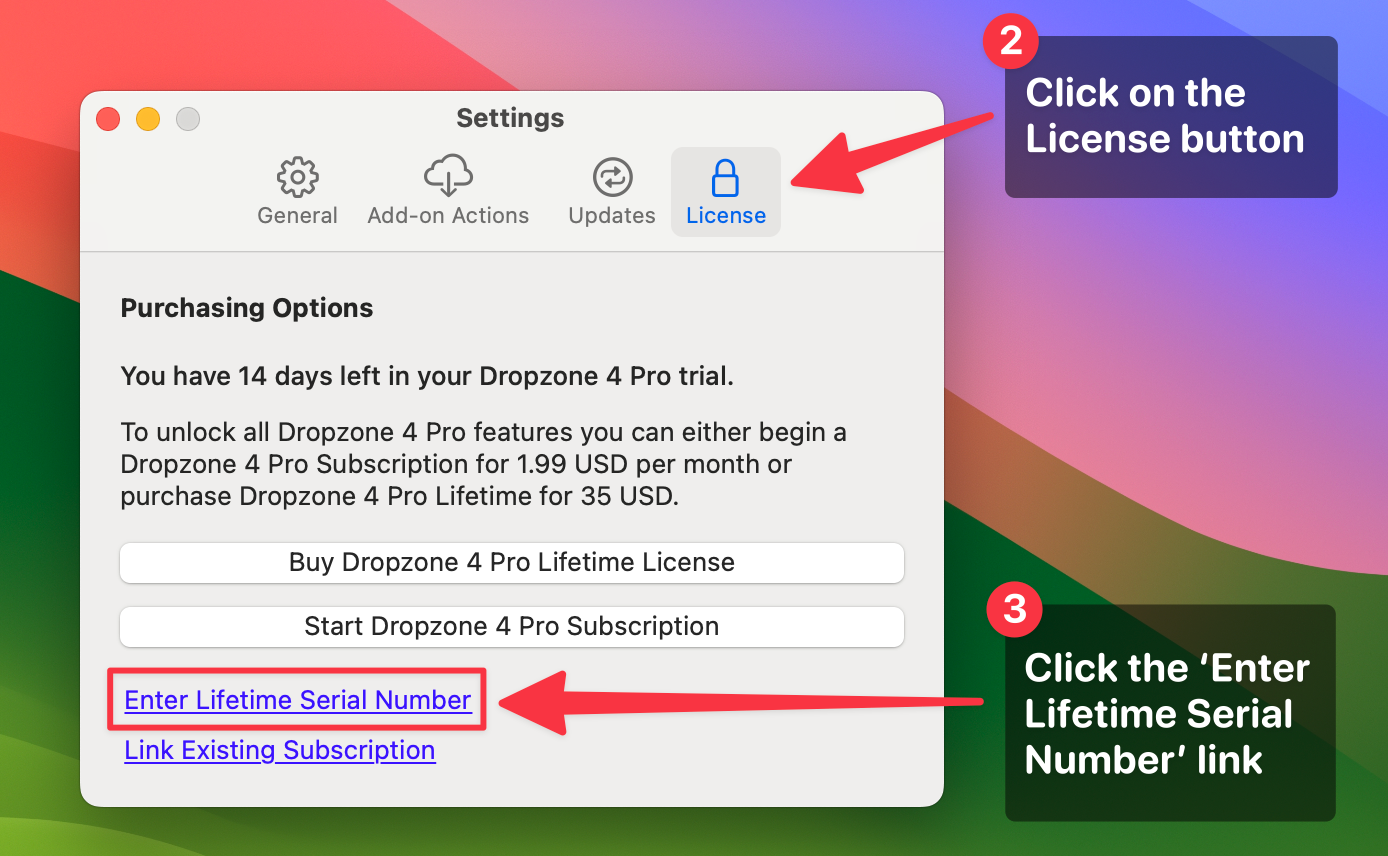
Go to the License section
Click the license item.
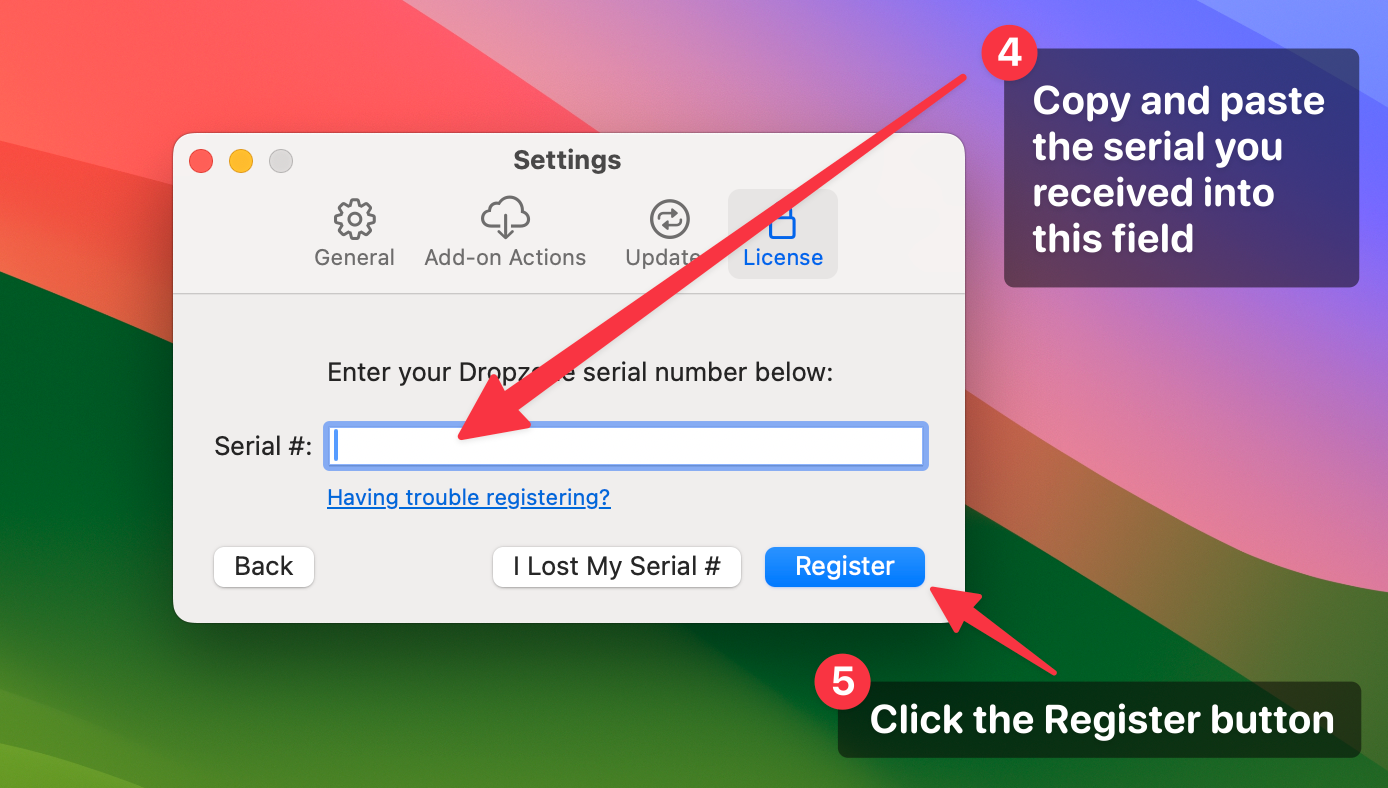
Paste your serial and Register
Enter serial number from your purchase confirmation email, then click the Register button.
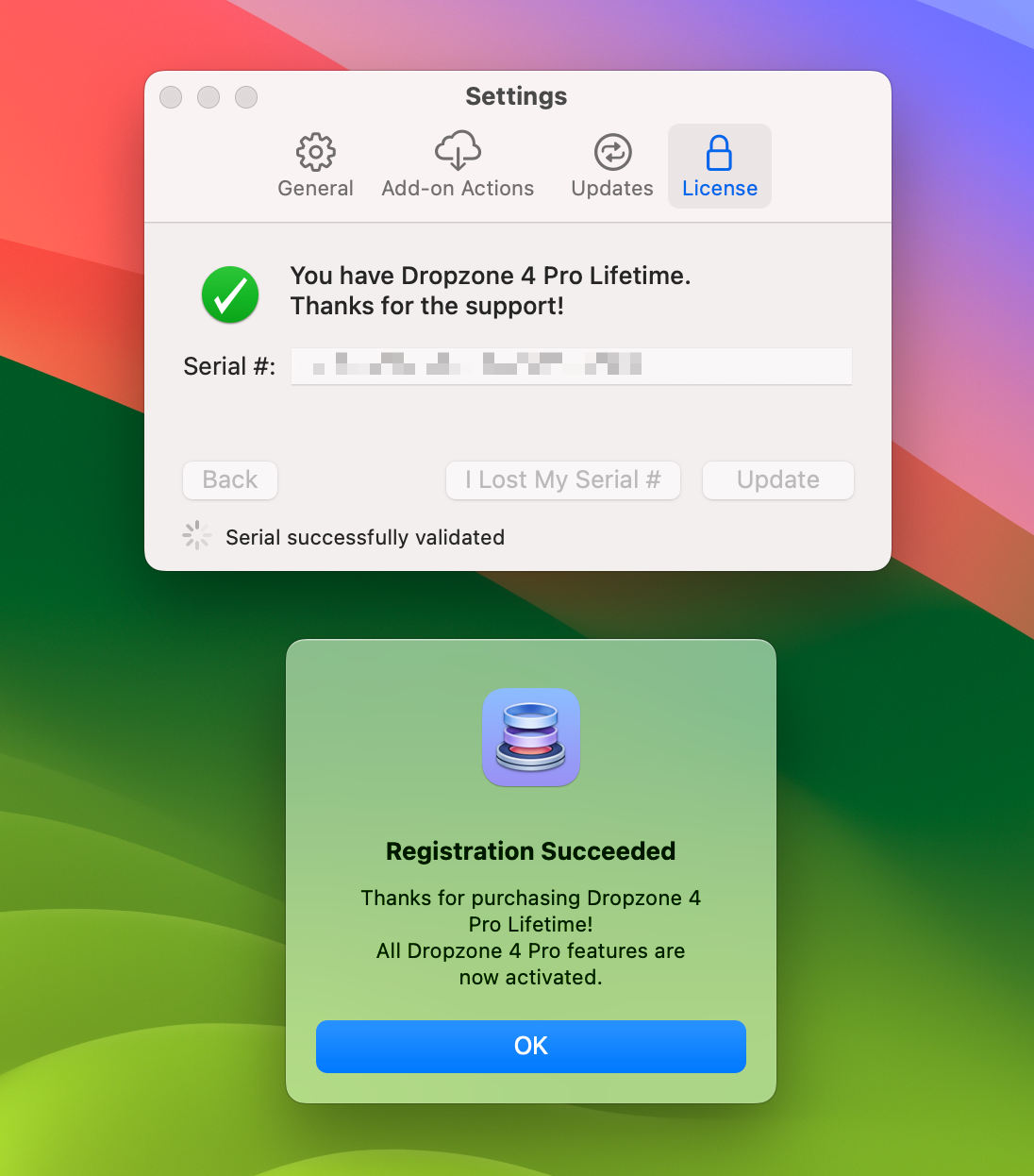
Registration Complete
You should see a confirmation that your Dropzone 5 Pro Lifetime license has been activated.
Registration Details Invalid?
If you receive this error, try the following solutions
Make certain the serial you pasted into the Serial # field matches what we sent you. A Dropzone serial is in the format XXXX-XXXX-XXXX-XXXX-XXXX (not case sensitive). Copy the serial from your email with Cmd-C, then paste with Cmd-V into the Serial # field.
Check that you haven't accidentally pasted the serial number in twice.
Dropzone contacts our server to verify your license, so you must be connected to the internet.
If you're running firewall software such as LittleSnitch, disable it temporarily and try again.
Sometimes rebooting your Mac and trying to register again can resolve this.
If you're still stuck, use the alternative method below to download a license file directly.
Download License File
Enter your serial number to download a license file as an alternative registration method.
A file named dropzone5-license.txt will be downloaded. Close Dropzone and relaunch it - Dropzone will look for this file in your Downloads folder and then on your Desktop. Make sure the file is placed in one of these locations.